"This site can't be reached" error when attempting to log in
Last updated: March 19, 2026
If you're seeing these errors when attempting to log in, there may be an issue with browser or network security or privacy filters or blockers interfering with your connection. Below are some steps you can take to attempt to resolve, or provide more info to Tabs support to troubleshoot further:
This site can't be reached
localhost refused to connect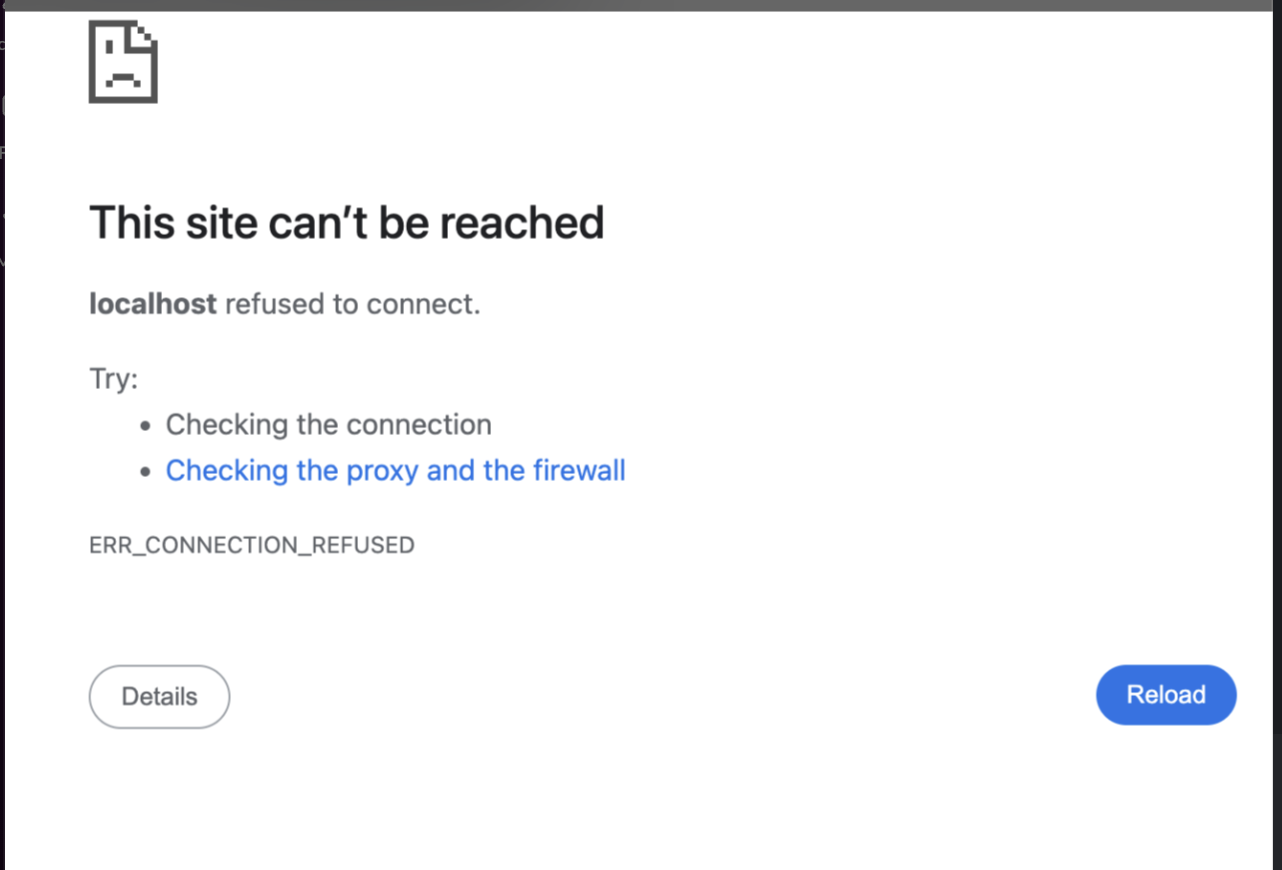
The Tabs authentication attempt may have succeeded with our identity provider, but the corresponding callback to our servers may have failed if an app or browser extension or security tool blocked the communication between the merchant's browser and our server.
Check browser extensions or other blockers
Check whether you have any browser extensions or local proxies set up to block OAuth callbacks. Possibly extensions like Privacy Badger, ClearURLs, or other custom security extensions can sometimes block these for security or privacy reasons.
Check with your IT team for network-wide / company-wide tools or policies
Ask your IT department whether they have any tools or security policies in place that treat OAuth callbacks from unrecognized sources as suspicious, and might be blocking them on that basis. Ask if they can add Tabs to an allow list.
If you are still having issues
If possible, please capture some additional information using Chrome developer tools, to help us investigate further.
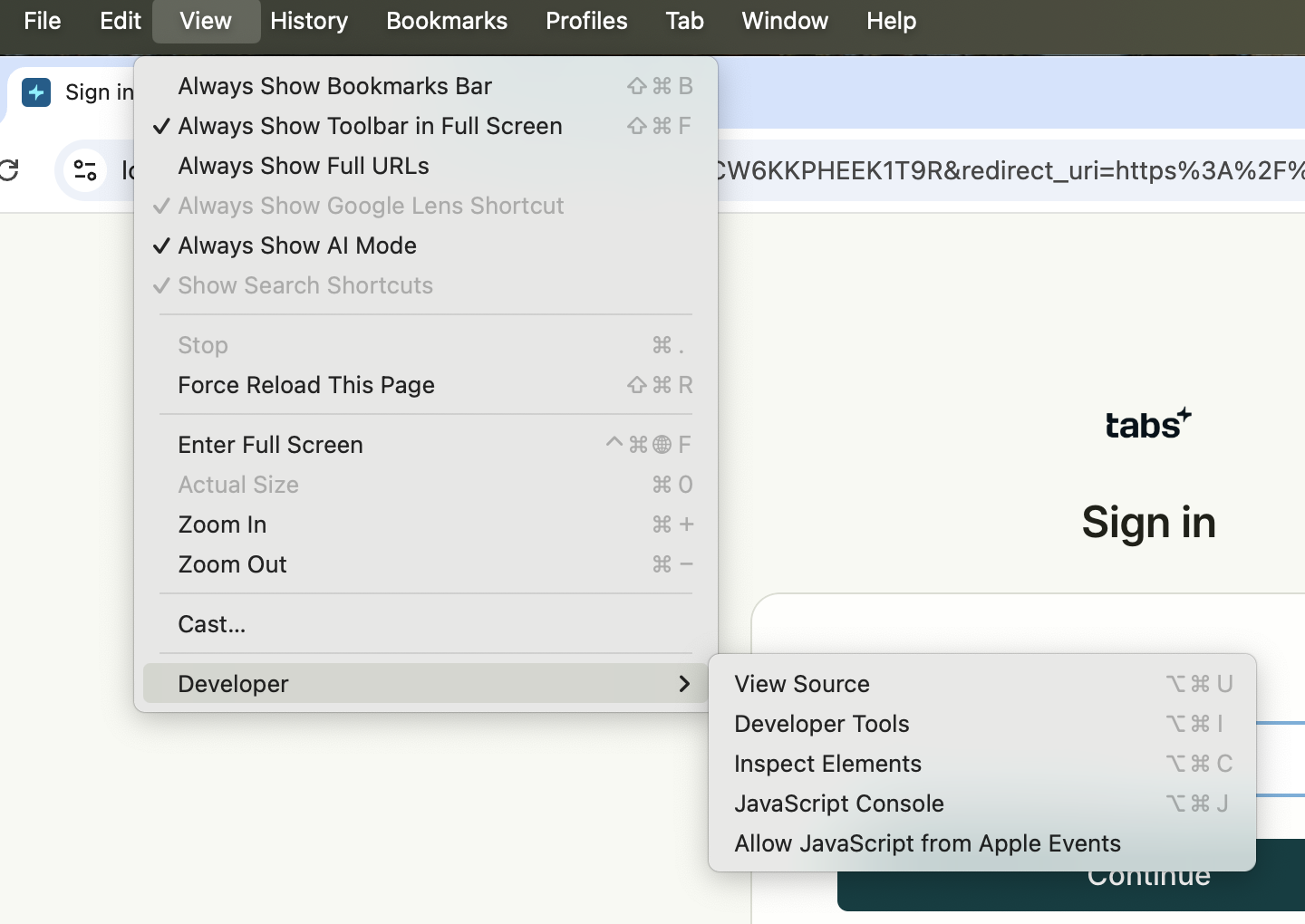
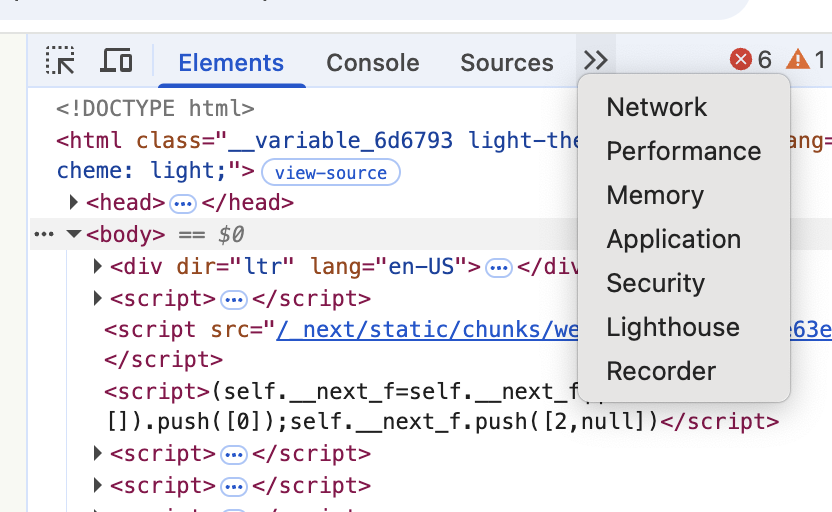
Open up Chrome developer tools by clicking View / Developer / Developer tools and go to the Network tab (click on the two right-facing arrows to open a drop-down containing the Network option).
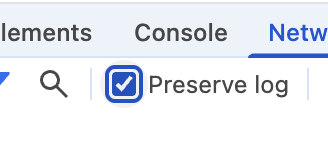
Check the "Preserve log" box, and then retry the login steps.
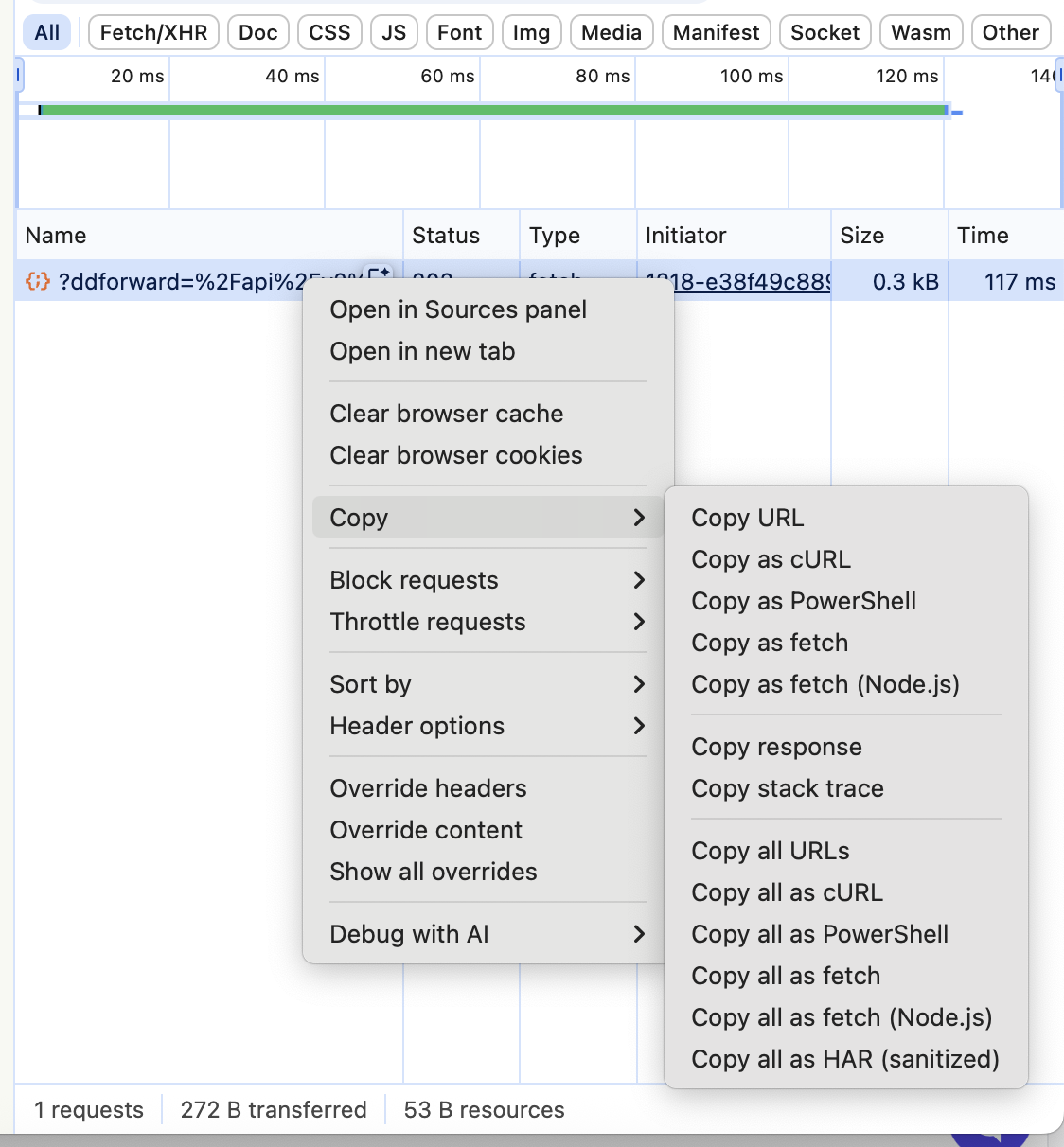
Right/control click and select "Copy / Copy all as HAR," and forward the file to Tabs support for further investigation.